

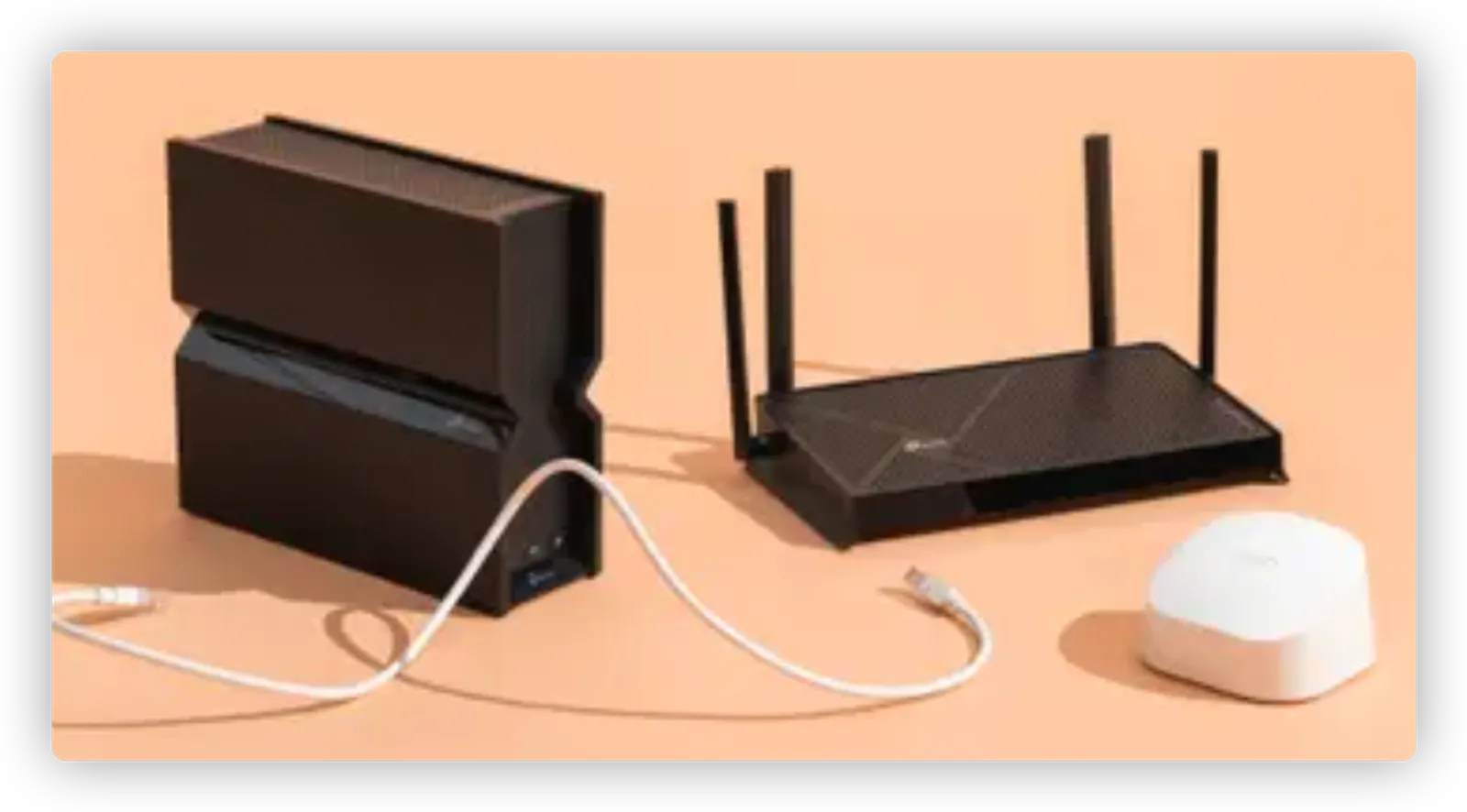

Three Wi-Fi routers sitting on a peach surface with a long, white Ethernet cable tangled between the devices.
If your router is more than a couple of years old and struggling to give you fast speeds, or if it’s frequently dropping connections altogether, a new router or a mesh-networking kit will improve your Wi-Fi’s range, stability, and speed all over your home.
Over the past seven years, we’ve spent hundreds of hours testing and evaluating nearly 150 routers, and we’ve determined that the best router for wirelessly connecting your laptops, your smart devices, and anything else your daily life depends on is the TP-Link Archer BE230.
How we picked
- Up-to-date tech Our top picks support Wi-Fi 6 and Wi-Fi 7, which can handle busy networks with a wide variety of connected devices.
- Fast connection We simulated a busy network on opposite ends of a 2,300-square-foot home to find the fastest, most reliable routers.
- Solid range A well-placed router should connect you to the internet anywhere in an apartment or a small house.
- No lag or very little lag A great router minimizes your wait even if the network is busy serving other devices. Read more
Top pick
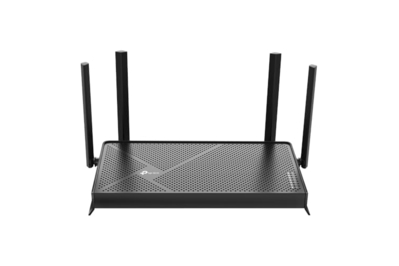
The TP-Link Archer BE230 is the latest in a long line of relatively inexpensive Wi-Fi routers that have provided solid, speedy Wi-Fi signals in our test house. It proves that you don’t need to buy the most expensive router to keep all your family’s devices reliably connected to the internet 24/7.
Most people don’t need “the fastest” or the most expensive router to get good internet. Hitting the sweet spot between price and performance, the TP-Link Archer BE230 usually costs under $100. It broadcast a reliable and responsive Wi-Fi 7 network in our test home, and wowed us with a speedy Wi-Fi signal far away from the router, even when we simulated a whole family using Wi-Fi at the same time. It also has a decent amount of future-proofing and is ready for a 2-gigabit internet connection, and you can expand it with another TP-Link mesh-compatible router or extender, so you won’t need to replace it for at least another four, five, or even seven years.
Upgrade pick
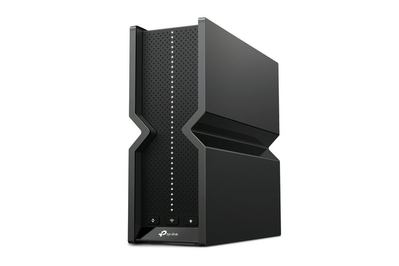
If you have gigabit or multi-gig internet service, or if you want to be ready for the latest technology, this Wi-Fi router is worth its higher price.
If you need a more future-proofed router that supports cutting-edge Wi-Fi technology, the TP-Link Archer BE550 is the one to buy. The Archer BE550 is more expandable and ultimately much faster than our pick. If you already have Wi-Fi 6E or Wi-Fi 7 phones or laptops in your home, or if you’re paying for multi-gig internet service, this upgrade is worth the extra $100.
Best for…
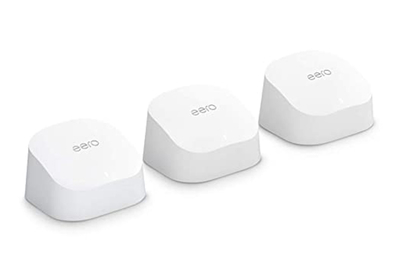
The Eero 6 smoothly delivers solid internet performance even while several people are using it simultaneously. It’s slower than our top pick for heavy downloaders and gamers, but this inexpensive router is expandable and a reliable option for a small home or an apartment.
(one unit)
(one unit)
The Eero 6 is easy to set up, inexpensive, and expandable into a mesh network if your needs grow. It provides a solid network for a small home or a multi-room apartment. It’s also one of the easiest routers to hide, on account of its tiny size, and it’s our choice if you need to quickly set up a Wi-Fi network in a friend’s or relative’s house.
Why you should trust us
I’m a writer who has covered Wi-Fi networks and other interconnected computer hardware for Wirecutter since 2018. In a previous life, I was an IT technician and manager. I have been testing and writing about PCs and networking for over 20 years, reviewing thousands of devices in that time.
For this guide:
- I have evaluated close to 150 Wi-Fi routers over hundreds of hours.
- I have built, maintained, and updated a separate Wi-Fi network in my home dedicated to testing Wi-Fi routers, extenders, and network-attached storage.
- I evaluate the measured performance of each router, its price compared with its peers, its ability to stay up-to-date over the next five to 10 years, and how easy each router is to set up and keep running.
- Like all Wirecutter journalists, I review and test products with complete editorial independence. I’m never made aware of any business implications of my editorial recommendations. Read more about our editorial standards.
- In accordance with Wirecutter standards, I return or donate all products I’ve tested once my assessment of them is complete, which may involve longer-term testing by my colleagues and me. I never hang on to “freebies” once testing is done.
Who this is for
If you’re happy with your Wi-Fi, you don’t need a new router—it’s as simple as that. If you’re having problems with range, speed, responsiveness, or reliability, though, and your router is more than a couple of years old, it might be time for an upgrade. An older router that doesn’t support Wi-Fi 6/6E (802.11ax) or Wi-Fi 7 (802.11be) and drops connections constantly, needs frequent reboots, or provides slow speeds even when you’re just in the next room can hold you back significantly.
This guide covers standalone Wi-Fi routers. Our top picks easily outperform most routers more than a few years old and are likely to save you money if you’re currently renting a basic router from your internet service provider. These routers are a good fit for apartments or small to medium-size houses with three to five people on the network.
If you have more people or a large house—more than 2,300 square feet, or more than two stories—take a look at our mesh-networking guide. A good rule of thumb is that if you’ve considered adding a wireless extender or an extra access point to an otherwise satisfactory router, get a mesh system instead.
However, you shouldn’t buy the cheapest router or the most expensive router you can find. Quality doesn’t necessarily scale with price, and a router with a bigger number on it or a plethora of antennas may not actually solve your Wi-Fi problems.
How we picked

Our three picks for best wi-Fi router next to a macbook laptop for scale.
For every round of testing, we research routers from each of the major router manufacturers, including Asus, D-Link, Linksys, Netgear, and TP-Link. We also look for routers from lesser-known manufacturers.
Instead of solely testing for maximum speed, we position five laptops around a 2,300-square-foot, two-story suburban home to simulate the real-world activity of a busy home network. We test for top speed (aka throughput) while simulating 4K streaming and file downloads, as well as for long range and responsiveness (aka short latency or waiting time on a busy network). See How we tested below for more details.
We’ve found that the following features matter the most:
- Current-generation technology: Since we look for routers that can improve your Wi-Fi, we consider only routers that support the Wi-Fi 6, Wi-Fi 6E, and Wi-Fi 7 standards. Any phone or laptop that you can buy today or may have bought in the past few years relies on one of these standards.
- Good speed-test results: In our tests, network speed, or throughput, varies from “this YouTube video will never finish loading” to “you can download a video game update in an instant.”
- Good range-test results: You should be able to connect to a well-placed router from anywhere in an apartment or a small house. We test each router to confirm whether it can stream high-quality videos to the far side of a living space.
- Quick responsiveness: Slow internet sucks. Latency—or lag—is the time you have to spend waiting for the next thing to happen. A great router minimizes that wait even if the rest of the network is busy.
- Multiple Ethernet ports: Ethernet ports give you unfettered access to the internet bandwidth you’re paying for.
- Nice-to-have extras: Fast, reliable Wi-Fi is what matters the most, but more expensive routers add features that bring other benefits. The things we like to see that justify spending more include built-in security utilities and speedier Ethernet ports.
- Price: You can buy a router for $20, and you can buy one for $800. But we don’t consider the cheapest or the fastest to be the best. When considering both features and our test results, we look for “the best for the most for the least.” Right now, paying around $130 for a router buys you excellent performance and features that offer real benefits.
In addition, we consult router-owner reviews, plus professional router reviews from Dong Knows Tech, PCMag, and SmallNetBuilder, to generate our list of contenders. After identifying every model that meets all of our criteria, we thoroughly test the most promising routers ourselves.
Top pick: TP-Link Archer BE230

A black TP-Link Wi-Fi router sitting on a peach surface.
Top pick
The TP-Link Archer BE230 is the latest in a long line of relatively inexpensive Wi-Fi routers that have provided solid, speedy Wi-Fi signals in our test house. It proves that you don’t need to buy the most expensive router to keep all your family’s devices reliably connected to the internet 24/7.
The Wi-Fi 7–compatible TP-Link Archer BE230 offers the best combination of price, features, and performance of any current router we’ve tested. Wi-Fi 7 was more of a buzzword than an easy-to-recommend technology until now. We mentioned the Archer BE230 as a model we liked in a recent previous version of this guide, but after seeing its price drop, and comparing its test results against those of its newer peers, we can now recommend it as the top-pick router for most people.
The Archer BE230 can handle a busy network, and it’s reliable. It also has some future-proofing, notably Wi-Fi 7 and a pair of 2.5 Gigabit Ethernet (GbE) ports. This means it’s ready for 2-gigabit internet service (2,000 megabits per second) once that becomes commonplace, and it properly supports a wired gaming PC or NAS that uses a 2.5 GbE port.
It supports (most functions of) Wi-Fi 7. This router is ready for Wi-Fi 7–connected phones and laptops, and it will therefore stay relevant longer than the five- to eight-year-old routers that some folks have in their homes now. The BE230 can also use new features, such as MLO (Multi-Link Operation), that improve connectivity if your laptop or phone supports them. However, the BE230 doesn’t support the 6 GHz radio band, which we discuss below.
It’s ready for multi-gig internet. Over the past couple of years, 2-gig has surpassed 1-gig as the fastest internet speed available to most US residents. The Archer BE230’s 2.5 Gigabit Ethernet ports can connect to 2-gig fiber service or a 2-gig cable modem. The second 2.5 Gigabit Ethernet port can connect to a gaming PC or a NAS as well. As home internet speeds get faster, this router won’t be a bottleneck like those equipped with only a 1 Gigabit Ethernet connector.

A close up of the indicator lights on a black TP-Link Wi-Fi router sitting on a peach surface.
Wi-Fi 6E and Wi-Fi 7 speed-test results (Mbps)

A graph of Wi-Fi speeds from different routers.
It delivers fast Wi-Fi at long range and close to the router. The Archer BE230 performed better than competitors at long range with the signal passing through several walls. The Acer Predator T7, for example, costs almost three times as much as the BE230, but our top pick was almost 250% faster in our long-range tests.
Browsing the web on a busy network

A graph showing network speeds on different routers.
It’s responsive, even when the network is busy. Many home networks are prone to lag and delays, making you wait for sites to even start loading. In our responsiveness test, which shows how routers handle the added stress of multiple devices accessing the network simultaneously, the Archer BE230 posted short lag times better than those of the Acer Predator T7 Mesh router, even though it’s considerably less expensive. It also bested comparably priced routers such as the TP-Link Archer BE260 and Netgear RS100. Based on these tests, we can say that the Archer BE230 won’t keep you waiting, even when multiple family members are using the Wi-Fi at the same time.

The ports on an Archer BE230 router.
It has all the wired connections you need. The Archer BE230 provides five Ethernet ports: two 2.5 GbE Ethernet ports for connecting your cable modem, fiber terminal, or network-attached storage, plus three Gigabit Ethernet ports for other wired devices. That’s enough for you to hardwire your most demanding gear — streaming set-top boxes, TVs, and game consoles — if you keep your router close by.
The Archer BE230 also has a USB 3.0 port for connecting a shared portable hard drive or SSD. This setup can’t replace a full-featured NAS unit, but it can help you back up your laptops regularly. In contrast, less expensive routers are limited to much slower data transfers over USB 2.0 (as with the Archer AX21, for example) or lack USB connectivity entirely (like the Eero 6).
It’s easy to set up. All routers walk you through the initial setup, but TP-Link’s administration page for the Archer BE230 is neither too simple nor too complicated. TP-Link provides enough information and settings for you to customize the network for your home’s needs, or you can just use the defaults. The overall setup, whether you handle it through TP-Link’s Tether smartphone app or the administration website, is quick. Note that you have to sign up for a TP-Link Cloud account if you want to use Tether.
TP-Link’s smartphone app lets you quickly configure settings. Tether for iOS and Android allows you to customize the router’s parental controls, security, and performance. You’ll need the app to access basic parental controls such as time limits, content filtering, and bedtime settings. (I’ve written about how I used parental controls, among other tools, to stop my teen from gaming all night.) If you want to prioritize functions such as streaming over gaming or vice versa, QoS (quality of service) settings are also included and easy to adjust.
You can expand its reach with TP-Link’s OneMesh and EasyMesh Wi-Fi extenders. We recommend the compatible TP-Link RE315 if you need to add a single extender. You can also use TP-Link’s EasyMesh feature to connect multiple TP-Link routers and extenders in your home to create a DIY mesh network. However, if you have more than one dead spot in your home, you might want to upgrade to a full mesh-networking system instead.
Its warranty is longer than others. TP-Link covers this router with a two-year warranty, which matches the coverage period for our other picks. Similarly priced routers from Acer, D-Link, Linksys, Netgear, and Ubiquiti have one-year warranties.
Flaws but not dealbreakers
It isn’t exactly aesthetically pleasing. Four adjustable but nonremovable antennas connected to the back and side panels make the Archer BE230 stand out visually, and not necessarily in a good way. Its antennas and its bulky chassis are guaranteed to clash visually with nearly any decor, even though its color scheme is an inoffensive, basic black. If you’re looking for a more unobtrusive router, the Eero 6 is much smaller and easier to ignore.
It doesn’t support the 6 GHz radio band. While this isn’t a drawback for most people, the Archer BE230 isn’t a tri-band Wi-Fi 7 router like our upgrade pick, the TP-Link Archer BE550. Therefore, you won’t be able to get the same theoretical top speeds as with the BE550, though you’d have to be using a Wi-Fi 6E or 7 laptop in the same room as a supported router in order to take advantage of 6 GHz radio bands. In any case, the Archer BE230 tested faster than some tri-band Wi-Fi 7 routers, particularly on long-range connections.
It requires an online login for setup through TP-Link’s Tether app. The BE230 allows for setup via its built-in web interface, but if you want to use the Tether app, you have to create a TP-Link login. A lot of the functionality of the Archer BE230 and some of its settings are found only in the Tether app, so if you want to have parental controls or monitor IoT (Internet of Things, aka smart home) security, for example, you need a TP-Link Cloud online account. You can set up a burner email address for this purpose if you don’t want the account connected to your primary email.
While some shoppers actively look for routers that don’t have any online logins because they’re worried about companies mining their data and tracking them, more router companies are requiring online accounts for convenience, remote monitoring, and paid subscription services. If you’re concerned about such things, we suggest alternatives like our former upgrade pick, the Synology WRX560, which you can set up and administer without an online account.
Some features are locked behind optional paid subscriptions. Advanced parental-control software costs $3 per month or $18 per year. TP-Link also offers a separate $5-per-month or $36-per-year plan for Security+ network protection and IoT security. If you don’t pay, you still get some basic functionality, such as the ability to block websites and to manually toggle internet access on your kids’ devices, but advanced settings, automatic timed internet control, most protection, and reporting are disabled after the one-month free trials. That said, the Archer BE230 will continue to provide solid Wi-Fi connectivity even if you don’t sign up for the added plans.
Upgrade pick: TP-Link Archer BE550

The TP-Link Archer BE550, our upgrade pick for the best Wi-Fi router.
Upgrade pick
If you have gigabit or multi-gig internet service, or if you want to be ready for the latest technology, this Wi-Fi router is worth its higher price.
If you’re splurging on a gigabit — or faster — internet service plan, the TP-Link Archer BE550 is the router you should get to make the most of the bandwidth you’re paying for. It’s also future-proofed, which could be worth the extra $100 over our top pick if you’re itching to get the latest technology in your home.
It’s faster than our top pick. The Archer BE550 was one of the top performers in our test group, handily beating our top pick, the TP-Link Archer BE230, in overall speed, 2.5 GbE connectivity, and 6 GHz support. Investing in such advanced performance will pay off if you’re one of the lucky people who have 1-gig or faster internet service, including multi-gig service. The Archer BE550 has five 2.5 GbE (Gigabit Ethernet) ports, which can connect to your cable modem or fiber network terminal, to network-attached storage, or to a PC with a 2.5 GbE adapter.
Using our laptop’s 6 GHz Wi-Fi, we measured top speeds of 1,256 Mbps in the same room as the router, faster than the Verizon Fios gigabit service we have in our test home. Speeds dropped to about 600 Mbps and 112 Mbps farther away, but these results were still faster than what we got from other Wi-Fi 6E and Wi-Fi 7 routers, particularly at our long-range test location, where the signal had to pass through four walls.
Wi-Fi 6E and Wi-Fi 7 speed-test results (Mbps)
A graph of Wi-Fi speeds from different routers.
Wi-Fi 7 is ready for the future. Though Wi-Fi 7 isn’t a must-have just yet, the Archer BE550 is ready for the improvements that Wi-Fi 7 promises. Wi-Fi 7’s additional 6 GHz Wi-Fi channel offers extra capacity and steady connections in the same room for Wi-Fi 6E and Wi-Fi 7 laptops, tablets, and phones. Other features, such as Multi-Link Operation (MLO) and 320 MHz–wide Wi-Fi channels, also help speed and performance on congested networks. For more details, read our article on Wi-Fi 7 and how it could improve your life.
It isn’t as hideous as other routers. While no router is beautiful, the Archer BE550’s internal antennas make it as visually tolerable as a rectangular plastic box can get. Other routers, including the TP-Link Archer BE230, the TP-Link Archer BE600, the Acer Predator Connect W6, and the MSI Radix AXE6600, have multiple external antennas sticking out, with some models resembling giant multi-limbed arthropods.

Close view of the ports on the back of our upgrade pick for the best Wi-Fi router.
It supports mesh networking, if you need that. As with the Archer BE230, you can add TP-Link EasyMesh routers and extenders or OneMesh extenders to the Archer BE550 to create a mesh-connected network.
It’s ready for the fastest internet connections. In addition to support for 2.5 GbE modems, the Archer BE550 has four 2.5 Gigabit Ethernet LAN ports, allowing you to connect EasyMesh routers and extenders to the base router with Ethernet cables, an arrangement that’s faster than wireless mesh. As we’ve seen in our wireless mesh testing, each additional wireless “hop” reduces the speeds you can achieve; wired networking bypasses the losses incurred when you connect to a wireless network over distance and through walls.

The indicator lights on our upgrade pick for the best Wi-Fi router.
Flaws but not dealbreakers
Not everyone needs the extra performance. If you don’t have a gigabit or multi-gig internet plan, and if reading about the Archer BE550’s extra features makes your eyes glaze over, you’re likely to find our top pick, the TP-Link Archer BE230, or the Eero 6 more than enough for easy internet access. Even more expensive home routers exist, but they mostly offer a bit more speed or maybe an additional 5 GHz Wi-Fi channel for more connectivity in exchange for their sometimes exorbitant price tags. Unless you’re downloading and uploading humongous files, such as uncompressed high-resolution audio, over Wi-Fi every day, you’re unlikely to notice the difference between the 1,604 Mbps from the Netgear Nighthawk RS700S, for example, and the 1,256 Mbps you can get from the Archer BE550.
Best for simple setup: Eero 6

The Eero 6, our budget pick for the best Wi-Fi router.
Best for…
The Eero 6 smoothly delivers solid internet performance even while several people are using it simultaneously. It’s slower than our top pick for heavy downloaders and gamers, but this inexpensive router is expandable and a reliable option for a small home or an apartment.
(one unit)
(one unit)
Our budget pick, the Eero 6 is the router we recommend if you want to spend around $80, or if you live in a smaller space such as an apartment or a compact home. Our top pick and upgrade pick were faster and more reliable at range than the Eero 6, but at long ranges it still outperformed some routers costing two to four times as much. It’s also the router that’s the most compact and the easiest to hide, and that can be a game-changer.
Wi-Fi 5 and Wi-Fi 6 speed-test results (Mbps)

A graph of Wi-Fi speeds from different routers.
It’s speedy, especially at long range. The Eero 6 was able to broadcast a strong, steady Wi-Fi 6 signal from 15 feet away as well as from 50 feet away and through four walls, reaching about 140 Mbps to 150 Mbps in both locations.
It’s cute, and you can hide it easily. The Eero 6 router measures about 4 by 4 by 2.5 inches — smaller than a 12-ounce coffee mug — and it has internal antennas. Consequently, it’s easy to hide behind non-metallic objects on a bookshelf or, say, in a wicker basket.
Its responsiveness is excellent. When we tested the Eero 6 with a full onslaught of Wi-Fi traffic, it held its own against our upgrade pick, the TP-Link Archer BE550, and our top pick, the TP-Link Archer BE230.

Close view of the ports on the back of our budget pick for the best Wi-Fi router.
You can expand it with Eero extenders, Amazon Echo Dot speakers, or additional Eero routers. If you find that the Eero 6 base unit works pretty well but can’t quite reach a stubborn dead zone, you can extend its range with compatible Eero 6 extenders.
You can set it and forget it. In addition to easy setup, Eero routers automatically update on a regular basis, in contrast to some other routers, which have that as an opt-in setting. Also, Eero’s app has very few settings that you can change, so you don’t have to worry about possibly screwing things up. The app can monitor the network when you’re away from your home and alert you, and you can reboot the router remotely if any issues crop up. That last feature is a boon for people who need to set up and support Wi-Fi for relatives, including parents.
Flaws but not dealbreakers
Its limited wired connections are a drawback. Whereas most other routers we reviewed have at least three Ethernet ports for wired connections in the same room as the router, the Eero 6 has only two. That isn’t an issue if your TVs, media boxes, phones, laptops, and tablets are all on Wi-Fi, but it may be a problem if you have more than one wired gaming PC.
Our other router picks offer faster top speeds. In comparison with the performance of the TP-Link Archer BE230 and Archer BE550, the Eero 6’s speed limits make it more suitable if you’re subscribed to a low- to mid-tier internet plan (under 500 Mbps), but this router is certainly sufficient for a compact home or an apartment with fewer smartphones and PCs. For many people, 140 Mbps feels fast enough, even if the household is streaming two or three 4K videos at once.
Other Wi-Fi routers worth considering
If you have more technical needs: The Synology WRX560 is our former upgrade pick. Although this model remains an excellent router, it has been surpassed by the Wi-Fi 7–compatible TP-Link Archer BE550, which is future-proof, has additional 2.5 GbE ports, and is easier to set up. We still recommend the WRX560 for folks who want to set up a small-business network or need IT-level controls, such as the ability to configure and administer more than two named Wi-Fi networks on the same router.
What about Ubiquiti?
Every time we do a router review or a mesh-networking guide, readers ask us about enterprise-level networking options such as Ubiquiti’s UniFi networking line. Although its rack-mounted models are decidedly overkill for most homes, we were intrigued by the Ubiquiti Dream Router 7, a full-featured Wi-Fi 7 router, and the UniFi Express 7, a compact router that is designed to expand wirelessly with other Express 7 routers as a mesh network. Their control panels are more complicated than those of the TP-Link routers and the Eero 6; if you’re an IT tech, that level of control may be appealing to you.
The tiny Express 7 has only two Ethernet ports, a 10 GbE WAN port, and a 2.5 GbE port, which limits its expandability. The taller Dream Router 7 has a full slate of 2.5 GbE ports (one port has PoE, or Power over Ethernet) and a 10 Gigabit SPF+ port for connecting to a fiber network. In our tests, the Express 7 standing alone was a little overwhelmed by our test network, but soon we’ll be testing it as part of a mesh network, where multiple Express 7 units will be able to share the load. The Dream Router 7 was quite a bit better than the Express 7, particularly in responsiveness, but the larger router’s top speeds were held back by default settings that favored rock-solid connectivity over outright speed.
That said, we would recommend the UniFi Dream Router for a person with the knowledge and experience (and time) to build and tweak a network to best suit their home’s quirks and their family’s needs. Like the Synology WRX560, the Ubiquiti UniFi Dream Router 7 is suitable for a small-business network or a mission-critical home office, or if you want to set up external wired access points and multiple Wi-Fi networks on the same router.
The FCC’s foreign-made router ban
On March 23, 2026, the FCC announced that it will not approve certification for new routers designed and assembled in countries outside the US, unless the manufacturer applies for and receives a conditional approval certification for each router from the Department of Defense and the Department of Homeland Security.
As of April 2026, Eero and Netgear are the only router manufacturers to receive conditional approval for their consumer networking products, including routers, mesh networks, cable gateways, and cable modems. This exemption lasts until October 1, 2027, for Netgear and October 31, 2027, for Eero. It remains unclear if Eero and Netgear will have to apply for an extension after October 2027, as the FCC is still hammering out the details and procedures that router manufacturers will have to follow.
The reasons cited for the ban include the Volt, Flax, and Salt Typhoon cyberattacks in which Wi-Fi router security vulnerabilities have been exploited. Router manufacturers update router firmware to protect against these vulnerabilities once they are identified. You can keep your current and future routers safe by updating their firmware regularly, using the auto-update feature that is enabled by default in every router we’ve reviewed in the past few years. Router makers will be able to issue software updates for existing routers until January 1, 2029.
Consumer-grade routers and their components are generally made in Southeast Asian countries, including Indonesia, Taiwan, Thailand, and Vietnam. In the long term, router manufacturers could possibly move design functions and manufacturing to the US.
This process will take time. Industry analyst Mike Feibus of FeibusTech told us: “US consumers will still need to buy routers. Which means there’s still a lot to sort out. Like what companies’ products get a pass via the Conditional Approval list? And how does the government come to define foreign made? This is far from settled.”
For now, we will continue to monitor the situation. All of the routers reviewed and tested in our guides have previously been approved by the FCC, and will continue to be available as long as the manufacturers restock them. We stand by our picks.
How we tested, plus the results
Other publications usually test Wi-Fi routers by connecting a single device to Wi-Fi at various distances, trying to get the biggest throughput number possible, and declaring the router with the biggest number and the best range the winner, at least in raw performance. The problem with this method is that it assumes that a big number for one device connected to the router divides evenly into bigger numbers for all connected devices. This is usually a valid assumption for wired networking, but it doesn’t work well for Wi-Fi.
How we tested Wi-Fi

A floorplan showing the layout of Wirecutter’s router testing house.
Because we were testing in the real world, external variables—competing signals, walls, network traffic—affected our results, just as they’re likely to affect yours. The purpose of our testing was not to choose a router that was slightly faster than others; it was to see which routers could deliver consistently strong performance without encountering major issues in real-world conditions.
Instead of running just a single speed test, we used multiple laptops at different distances from the router in a 2,300-square-foot, two-story suburban home to simulate the real-world activity of a busy home network. We connected a desktop PC via Ethernet to each router as our web server and used the open-source Netburn test to check each router’s speed and responsiveness.
We used a mix of 802.11ac (Wi-Fi 5), 802.11ax (Wi-Fi 6), and 802.11be (Wi-Fi 7) laptops to simulate a home network serving 4K video streams, browsing the web, and downloading a large file (such as a game update) all at the same time.
Microsoft has recently added Wi-Fi 7 enhancements to Windows 11, including support for MLO and speedier 320 MHz “ultra-wide bandwidth.” We updated our test laptops during this testing session to take advantage of those upgrades.
Our laptops ran the following tests:
- One laptop sat in the downstairs primary bedroom and simulated a 4K video streaming session. It tried to download data at up to 30 Mbps, but we were satisfied if it could average 20 Mbps to 25 Mbps or better, which is what Disney+ recommends for 4K UHD.
- The second laptop sat in the garage and simulated a web-browsing session. Once every 20 seconds or so, it downloaded 16 files of 128 KB each simultaneously to simulate loading a modern web page; ideally pages should load in less than 750 milliseconds.
- The third laptop sat in the living room across the house, simulating a second browsing session. It also downloaded 16 128 KB files simultaneously, and on this laptop we looked for the same quick load times.
- The fourth laptop sat in a spare bedroom downstairs at close range and downloaded a very large file. For this large-file download, we didn’t care about latency—the amount of time between when the computer made a request and when the router responded to it—but we did want to see an overall throughput of 100 Mbps or better.
- The fifth laptop, dedicated to Wi-Fi 6E and Wi-Fi 7 testing, sat in the same room as the router. This laptop also downloaded a very large file. This test allowed us to measure each router’s best-possible speeds while also stressing high-end routers more strenuously than the other models.
We ran all of the above tests simultaneously to simulate a realistic extra-busy time on a home network—after all, those busy times are when you’re most likely to get annoyed.
This mix of tests and devices allowed us to evaluate each router’s speed (throughput), range, and ability to multitask (latency or lag). We placed one of our test laptops approximately 15 feet from the router, with one interior ceiling between router and laptop; we also performed a long-distance test at about 50 feet, with four interior and two exterior walls in the way. If Wi-Fi 6E or Wi-Fi 7 was available on a router, we tested it from a 5-foot distance and in line of sight so that we could find its best potential speed. We tested throughput using a real HTTP download, the same protocol you use to view websites and download files, to better expose differences in general performance.
Top speeds
We characterized a router’s speed by looking at the combination of performance when downloading a large file at both short and long range (which gearheads call throughput). A decent number of the routers were able to top 500 Mbps to 800 Mbps at close distances, with some of the best-performing routers, such as the TP-Link Archer BE550 and Netgear Nighthawk RS700S, reaching 1,200 Mbps to 1,600 Mbps in this test. Only a couple of stragglers, the TP-Link Archer AX21 and Linksys Classic Router Micro 5, fell far behind at 5 Mbps to 27 Mbps, particularly at long distances and when the signal passed through multiple walls.
Wi-Fi 5 and Wi-Fi 6 speed-test results (Mbps)
A graph of Wi-Fi speeds from different routers.
Wi-Fi 6E and Wi-Fi 7 speed-test results (Mbps)
A graph of Wi-Fi speeds from different routers.
Note that we saw these speeds on a connection between two PCs on each router’s Wi-Fi network. Your internet service plan acts as a speed limit on your connection to the internet. For example, if you’re paying for a 50 Mbps service plan, 50 Mbps is the best you can expect when you’re downloading from the internet. If you’re on a gigabit (a 1,000 Mbps connection) or multi-gig (faster than 1,000 Mbps) plan, you’re more likely to max out your connection speeds using any of our top routers.
Browsing on a busy network (measuring responsiveness)
Raw speed isn’t everything, so in addition to evaluating top speeds at various distances, we measured responsiveness on a busy network, otherwise known as latency or lag. Latency measures the time you spend between clicking a link and waiting for the next web page, streaming video, or file download to come through. We ran this test concurrently on two laptops while other laptops were downloading files and simulating a 4K video stream, further stressing the Wi-Fi network.
Browsing the web on a busy network
A graph showing network speeds on different routers.
During our multi-client responsiveness testing, we evaluated how well each router performed when everything was working as normal, as well as how poorly it did ramping down to its worst moments. This process allowed us to determine how frequently the network became unresponsive, and how much the experience may frustrate you.
The top routers passed this test with flying colors; any of them will give you good to great responsiveness while you’re browsing, even while other family members are using the Wi-Fi at the same time.
The TP-Link Archer BE550, our upgrade pick, speedily served each client simultaneously, with a minimal wait on a busy network; the TP-Link Archer BE230, our top pick, performed similarly. The Eero 6, our budget pick, managed to stay true and steady, with no web-browsing hiccups, during a session with 4K video streams and large file downloads happening at the same time.
At the other end of the chart, the higher numbers for the Netgear RS200, Acer Predator Connect T7, and D-Link DIR-X1560 show that you’re likely to be sitting there waiting for a few seconds (or more) when other devices are stressing the network at the same time. If you click a link and then have to wait a few seconds (or more) for something to happen, it’s the definition of slow internet.
What is a Wi-Fi router? (And other frequently asked questions)

Three of the Wi-Fi routers we tested for this guide, shown grouped together on a wooden table.
Typical home networks today don’t look like they did in the early 2000s. Even without getting into the explosion of smart-home devices (everything from smart light bulbs to doorbells to washing machines now relies on a decent Wi-Fi connection), most homes these days have two or more personal Wi-Fi devices (phone, laptop, tablet) per person, as well as smart TVs or media streaming boxes such as Roku or Apple TV devices.
A busy evening in a typical home could have one person downloading game updates in a bedroom, a second listening to music from a smart speaker, a third watching TV in the living room, and a fourth browsing the web while sitting on the couch—and all of that traffic demands a router that can provide fast performance for lots of devices at once. The resulting network congestion that such homes experience has made us a lot pickier about what routers we accept as the best for the most people, as well as a lot more interested in features such as Wi-Fi 6 support and mesh compatibility. These features cost more, but they’re worth the expense.
What is a router?
A router is a box that connects your home network to the internet, through your cable modem or fiber internet connection. All communication on the internet, whether it’s a website, a streaming movie, a FaceTime video call, or an email message, is made of data packets. The router takes the signals from your modem (see below) and determines that a streaming movie, for example, is one group of data packets and is meant to be routed to your iPad for viewing, or that another group of packets is an email that you will be reading and responding to on your laptop. Most current home routers handle both wireless (Wi-Fi) and wired (Ethernet) connections.
What is the difference between a modem and a router?
As we describe in our article explaining modems versus routers, a modem is a box that connects your home network to your internet service provider (ISP). A router is a box that allows all of your wired and wireless devices to use that internet connection at once and lets them talk to one another directly. Think of the modem as the box that deals with all the data packets to and from the outside world, and the router as the one that deals with all the communication inside your home or business.
What are dual-band routers and tri-band routers, and what’s the difference between them?
Although all modern routers are at least dual-band —offering one slower but longer-range 2.4 GHz band and one faster but shorter-range 5 GHz band—taking full advantage of both bands isn’t easy. On most cheap (or old) routers, you have to create two separate network names, such as “mynetwork2.4” and “mynetwork5,” and then decide which of your devices should join which network. If you don’t give your networks different names, or SSIDs, in practice all your devices end up piling onto the one 5 GHz band, and you experience slower speeds, delays, and even dropped connections when several of them are online and busy at the same time.
Tri-band and Quad-band routers have extra 5 GHz bands or 6 GHz bands in addition to the 2.4 GHz and 5 GHz bands of a dual-band router. Each additional band allows more devices to connect and be busy at once without slowing the network down so much.
What’s the difference between a regular router and a mesh router?
A regular or standalone router is just that: It stands alone, and it sends data packets (streaming videos, music, Slack messages, and so on) from a central location in your home to all your wired (Ethernet) and wireless (Wi-Fi) devices. A mesh network consists of a system of two to four boxes —usually sold in a package—that work together to relay the Wi-Fi signal around your house or business. Those boxes might be called mesh routers, mesh extenders, satellites, or nodes, depending on the manufacturer. We advise using a mesh network if the Wi-Fi signals from a single router are too weak to reach all the corners of your home, causing dropouts.
What are Wi-Fi 5, Wi-Fi 6, Wi-Fi 6E, and Wi-Fi 7? And how does anyone choose between them?
Wi-Fi 6 brings improvements that help routers and mesh networks better handle the increasing number of wireless devices, using technologies such as OFDMA (orthogonal frequency-division multiple access) and TWT (target wake time). However, devices must be compliant with Wi-Fi 6 to take full advantage of them.
Wi-Fi 6E, an extension of Wi-Fi 6, uses many of the same technologies but adds them to the 6 GHz radio band (PDF). As with Wi-Fi 6, you can use Wi-Fi 5 and Wi-Fi 4 devices with Wi-Fi 6E routers.
Wi-Fi 7 (aka 802.11be) is the newest of the Wi-Fi technologies. Like Wi-Fi 6E, it uses the 6 GHz radio band in addition to the 2.4 GHz and 5 GHz radio bands. Wi-Fi 7 promises to improve throughput and bandwidth by widening the radio channels (320 MHz channels), more efficiently packing those channels with data (4K QAM), allowing connections on two separate channels simultaneously (MLO), and transferring data in unused portions of an otherwise congested channel (Multi-RU puncturing). We’ve been testing Wi-Fi 7 routers with a Wi-Fi 7–upgraded laptop, and we’ve noticed some improvement while using the new technology.
In 2026, most people should buy a Wi-Fi 6 or Wi-Fi 7 router. Wi-Fi 5 routers are still usable if you want to save some money, but Wi-Fi 6 has reached the mainstream saturation point and now gives you the best performance for a moderate amount of money.
Wi-Fi 6E and Wi-Fi 7 routers are forward-looking and may be relevant for a longer period of time, but to make the most use of either technology, you have to upgrade your laptops, tablets, and phones, as well. Look for routers that have been fully certified by the Wi-Fi Alliance, a group that guarantees that wireless devices work with one another and can use all the functions advertised. Note that some routers, such as the Netgear Nighthawk RS700S, haven’t fully implemented vaunted features like MLO at this writing. Our newest upgrade pick, the TP-Link Archer BE550, is the first Wi-Fi 7 router we’re recommending to early adopters.
What to look forward to
New Wi-Fi 7 routers, which promise faster speeds, lower latency, and improved simultaneous connections, are now readily available. You need Wi-Fi 7 or up-to-date Wi-Fi 6 laptops and phones to take advantage of some new features at the moment, and some prices remain higher than those of Wi-Fi 6 routers, but we plan to test more new options soon, including the Asus ProArt Router PRT-BE5000, TP-Link Archer BE700, Archer GE400, and Archer BE670. The Asus ROG Rapture GT-BE19000AI is advertised as having artificial intelligence enhancements, but we’ll see whether those translate into better connectivity.
Wi-Fi 8 is on the horizon, and the new technology promises to improve interference and slowdowns when the network is most congested. It doesn’t promise a higher top speed than Wi-Fi 7, but rather better speeds in more varied situations. As Wi-Fi 7 itself is just becoming mainstream, you won’t have to worry about buying a Wi-Fi 8 router for months, if not years. And since the first Wi-Fi 8 routers in 2026 will likely be expensive draft versions, it will be 2027 or even 2028 before mainstream Wi-Fi 8 routers, laptops, and phones catch up.
TP-Link plans to release a Wi-Fi 8-equipped Archer 8 router in late 2026, though specific tech details and pricing are pending. As it’s a new router, TP-Link will have to clear it with the FCC before it is sold in the US.
The competition
The TP-Link Archer AX3000 Pro was our former top pick, but the Archer BE230 has eclipsed it. Our new pick is equipped with Wi-Fi 7 technology, easier to find in more stores (the AX3000 Pro is a Best Buy exclusive), cheaper, and more likely to be supported with updates longer than the AX3000 Pro.
The TP-Link Archer BE600 is promising as a tri-band Wi-Fi 7 router that’s just a little more expensive than the Archer BE550, our upgrade pick. The BE600 tested well and is functionally similar. It’s almost worth considering if you don’t mind seeing six external antennas sticking out of a router that’s smaller than the BE550. The BE600 also adds a 10 GbE port, so it’s slightly more future-proofed, though few PCs and even fewer internet providers will be able to connect to that port at full speed.
In addition to our upgrade pick, the TP-Link Archer BE550, we tested the Asus RT-BE96U, the Netgear Nighthawk RS700S, RS600, RS500, and RS300, and the TP-Link Archer BE800. Notably, the Nighthawk RS700S achieved some of the fastest and most lag-free results in our testing, but it costs over twice as much as our upgrade pick. The other Netgear routers in the lineup cost less (and have a corresponding reduction in capabilities) as the model numbers go down, but in our tests none of the other models distinguished themselves as the RS700S did. We dismissed the other Wi-Fi 7 routers either because they fell short on our tests or because they were priced too high.
The Asus RT-BE88U, RT-BE58U, and RT-BE86U, the Eero 7, the Netgear Nighthawk RS100 and RS200, and the TP-Link Archer BE260 and TP-Link BE400 are dual-band Wi-Fi 7 routers that omit the 6 GHz Wi-Fi channels to simplify the router’s design and introduce Wi-Fi 7 to areas of the globe where 6 GHz radio signals are more regulated. Like our top pick, the TP-Link Archer BE230, these routers cannot connect to a Wi-Fi 7 laptop at the fastest possible speeds, but they do introduce other connection-enhancing Wi-Fi 7 features, such as MLO. The RT-BE86U was a decent performer, and it can connect with other routers using Asus’s AiMesh networking, but it’s over 200% more expensive than our top pick. The Eero 7 (sold in a one-pack) was a lot less responsive than our top pick during testing; it is much better in a mesh network with multiple Eero 7 units working together.
We also tested a few gaming-oriented Wi-Fi 7 routers, the Acer Predator Connect T7, Asus ROG Rapture GT-BE98 Pro, and TP-Link Archer GE800. The GT-BE98 Pro provided top-notch performance and has good, if not great, settings for gamers and tech experts, but it’s just too darn expensive unless you’re a wealthy gamer. On the other hand, the Archer GE800 produced highs and lows in its test performance, including some busy situations in which you would just be sitting there waiting for things to happen. The Connect T7 trailed in performance numbers, has a short one-year warranty, and has a somewhat confusing administration screen, though we’ll soon retest it with another Connect T7 unit as a mesh network. Of these three models, the latter two are not worth the investment, especially for gamers.
We tested several Wi-Fi 6E routers, including the Acer Predator Connect W6, the Asus RT-AXE7800, the Linksys Hydra Pro 6E MR7500, the MSI Radix AXE6600, the Netgear Nighthawk RAXE300 and Netgear RAXE500, and the TP-Link Archer AXE75, Archer AXE95, and Archer AXE300. Though most of the Wi-Fi 6E routers performed well, at this time we don’t think they’re worth buying. Wi-Fi 7 has leapfrogged Wi-Fi 6E in most respects, offering more features and increased speeds on the 6 GHz radio band.
We’ve tested dozens of routers for previous versions of this guide but dismissed them because they lacked features, cost significantly more, or lagged behind our picks in some way.
Asus models we’ve tested include the Asus RT-AX55, RT-AX3000 (aka RT-AX58U), RT-AX82U, RT-AX86U, RT-AX86U Pro, and ROG Rapture GT-AX6000.
From D-Link, we’ve tried the D-Link R15, DIR-X1560, DIR-X1870, M30 and M60. Tested Linksys models include the E7350, E8450, Hydra Pro 6 MR5500, Hydra 6 MR20EC, MR7350, Linksys Classic Micro Router Pro 6, Classic Micro Router 6, and Classic Micro Router 5.
We dismissed the Netgear RAX5, RAX20, RAX40, RAX50, and RAX70. We also no longer recommend the Synology RT2600ac, a former runner-up, and we dismissed the Synology RT6600ax.
Finally, the TP-Link Archer A7, Archer A8, Archer AX10, Archer AX21, Archer AX55, Archer AX73, Archer AX75, Archer AX90, Archer AX5400 Pro, Archer AX55 Pro, Archer AX6000, and Archer GX90 rounded out our testing of TP-Link models.