



The Wi-Fi mesh networking kits we tested lined up side by side.
Slow Wi-Fi can be more frustrating than no Wi-Fi at all, and the culprit in many cases is one router trying to cover too much house. One solution is mesh-networking systems, which spread multiple access points around your house to improve the range and performance of your Wi-Fi.
After spending hundreds of hours evaluating and testing more than 130 Wi-Fi mesh-networking systems in home and lab environments over the past six years, we’re confident that the Eero 7 system is the best mesh router for most people who need one.
Top pick
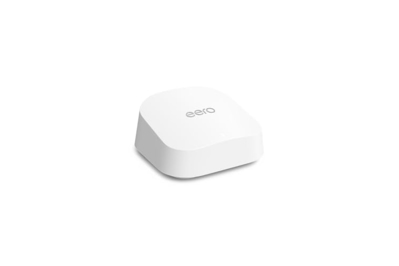
The Eero 7 serves steady Wi-Fi on a busy network and surpasses pricier options. It’s also much easier to set up than more complex systems.
(pack of two)
The Eero 7 takes just a few minutes to set up, provides lag-free Wi-Fi all over your home, is easily (and relatively cheaply) upgradable, and can be managed remotely from a mobile phone app. It’s a good introduction to Wi-Fi 7 for most people, and it’s ready for the phones and laptops you’ll be buying over the next year or two. The best part is, if all you want is reliable Wi-Fi, you can set it and forget it.
Our tests showed that it easily streams multiple 4K videos simultaneously and is more than capable of handling your family’s growing collection of smart devices.
Upgrade pick
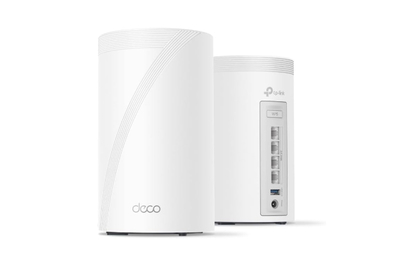
The Deco 7 Pro (BE63) is significantly faster and has more Ethernet connections than our top pick. We’d suggest it if you have a gigabit (1,000 Mbps, or faster) internet service plan or already have a multitude of smart-home devices.
(pack of three)
The TP-Link 7 Pro (BE63) is our choice if you currently use or are planning to upgrade to a gigabit or faster internet connection. It’s worth the added expense if you’ve already installed dozens of tech devices like cameras, laptops, tablets, and smart TVs, and need a powerful mesh network to serve all those video streams. It’s the upgrade pick for those who need Wi-Fi 7 technology to squeeze out the fastest connection today, and in the next few years.
Budget pick
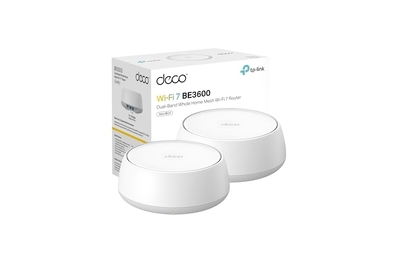
The TP-Link Deco 7 (BE23) outperformed mesh networks that were hundreds of dollars more expensive. It’s our choice for a cheaper way to share a Wi-Fi network around a large living space.
(pack of three)
The TP-Link Deco 7 (BE23) is as easy to set up as our other two picks, and it’s an excellent alternative if you want to spend around $200 on a three-piece mesh network. Its relatively tiny boxes are as easy to hide as the Eero 7’s, and it provided solid connections on our busy test network. And it’s Wi-Fi 7, which means it’s future-proofed for years to come.
Why you should trust us
I’m a senior staff writer who has covered Wi-Fi networks and other interconnected computer hardware for Wirecutter since 2018. In a previous life, I was an IT technician and manager. I have been testing and writing about PCs and networking for over 20 years, reviewing thousands of devices in that time.
For this guide:
- I’ve evaluated more than 300 Wi-Fi routers and mesh systems for Wirecutter over the past five years.
- I built, maintained, and updated a coordinated set of Wi-Fi laptops and a web server in a large home dedicated to testing Wi-Fi mesh networks and range extenders.
- I measured and evaluated the performance of each mesh network, its price compared with its peers, its ability to stay up-to-date over the next five years, and how easy each network is to set up and keep running.
- Like all Wirecutter journalists, I review and test products with complete editorial independence. I’m never made aware of any business implications of my editorial recommendations. Read more about our editorial standards.
- In accordance with Wirecutter standards, I return or donate all products I’ve tested once my assessment of them is complete, which may involve longer-term testing by my colleagues and myself. I never hang on to “freebies” once testing is done.
Who mesh-networking systems are for
Before you toss everything out and get a mesh system, you should try moving your router to a central location—in smaller houses a single router can actually be more effective than mesh networking.
But if you have a house that a single powerful router can’t cover well, you probably need a mesh system. A home larger than 2,300 square feet (depending on the layout), a large apartment or small house with signal-killing interior walls made of lath-and-plaster, brick, stucco, or concrete blocks, or a tall, narrow building like a three-story townhouse could all benefit from a mesh setup with multiple nodes.
A mesh network is composed of two or more parts. A mesh router or base unit is the device you set up first. It connects to your home’s internet (via an Ethernet connection to a cable modem or the gateway router) and broadcasts Wi-Fi. A mesh node or satellite is the device that connects back to your router (or another node) to extend that network and provide a more reliable Wi-Fi connection over a greater area. Most systems come with one or two of them. Sometimes they are physically identical to the base unit and sometimes they aren’t.
If you already have a good router that you like and need just a little more range in part of your house, you might consider adding a wireless extender. (Here’s our comprehensive guide to wireless extenders.)
Another option is a mesh extender, which, like a mesh-networking system, automatically hands your connection off from router to extender and back, using the same network name; that makes the mesh experience a little more seamless. Mesh extenders may improve coverage in dead spots if you already have a decent wireless router, though they showed mixed results in our extender guide testing compared with full-blown mesh networking systems.
A wired network is always faster than a wireless one
If your house is wired for Ethernet, you don’t need a mesh-networking system. Mesh shines when you don’t have wires, don’t want wires, and have lots of trouble spots (or one really big trouble spot) with poor or no coverage.
A mesh system won’t necessarily make your internet faster at short to medium range. As shown in the performance testing of standalone routers, the best Wi-Fi mesh systems did just as well as our upgrade standalone router pick, the TP-Link Archer BE550. Mesh can offer better coverage and lower latency in a wider area, which makes your connection feel faster throughout the house because your devices aren’t grabbing at faint wisps of signal.
A good standalone Wi-Fi router can handle multiple devices, as long as those devices all have good connections. Even one device with a poor connection can bring the quality of a single router’s network down, eating up all of the available airtime, starving the rest. The best mesh networks ensure good connections among devices, the base unit, and any satellites, reducing the likelihood of a poorly connected device slowing down the others.
How we picked the best mesh network
Over the past five years, we’ve tested Wi-Fi mesh-networking systems from almost 20 manufacturers (AmpliFi, Arris, Asus, D-Link, Eero, Google, Gryphon, Motorola, Linksys, Netgear, Synology, TP-Link, Trendnet, Ubiquiti, Vilo, Wyze, and Zyxel) in order to find the best Wi-Fi mesh network system.
To reproduce the real-world activity of a busy home network, we used laptops simulating everyday tasks, spaced around 3,000 square feet of a three-and-a-half-story suburban home.
We tested for top speeds (streaming simulated 4K video and file downloads), good coverage in spots around the house, and responsiveness (simulating three simultaneous browsing sessions on a busy network).
Here are our key criteria:
- Ease of setup and administration: You should be able to get your home on the internet in less than half an hour with a mesh network.
- Good speed test results: In our tests, network speed—or throughput—varies from “This YouTube video will never finish loading” to “You can download a video game in an instant.”
- Good range test results: You should be able to connect to a well-placed mesh system from anywhere in your house. We tested each system to see its maximum potential when close to the base unit, as well as in trouble spots in the home through walls and Wi-Fi blocking objects like refrigerators.
- Quick, responsive network results: Slow internet sucks. Latency—or lag—is the time spent waiting for the next thing to happen. A great mesh system minimizes that wait even if the network is busy.
- Expandability: You should be able to add more nodes later to extend and improve coverage even farther, wirelessly or with wires.
- Multiple 2.5 gigabit Ethernet ports: Ethernet ports on a mesh system’s satellites let you connect devices such as TVs, streaming boxes, and gaming consoles away from the base unit.
- Nice-to-have extras: Fast, reliable Wi-Fi is what matters the most in a mesh system, but more expensive optional features bring other benefits, too. The things we like to see that justify spending more for a mesh system include speedier connections (like 5 or 10 gigabit ports), extra Ethernet ports, and tri-band Wi-Fi 7.
- Price: You can buy a mesh system for $80; you can also spend over $2,200. But we don’t consider the cheapest or the fastest to be the best. When considering both features and our test results, we looked for “the best for the most for the least.”
One more thing: Don’t confuse the test results in our guide with the internet speed you’re paying for. For example, the TP-Link Deco BE63 (our upgrade pick) is capable of downloading over 950 megabits per second at close range with no obstructions, but you still can’t get more than about 100 megabits per second from the internet if you have a 100-megabit plan from your ISP.
The best Wi-Fi mesh system: Eero 7

Two Eero 7 wifi mesh routers sitting side by side on a beige background.
Top pick
The Eero 7 serves steady Wi-Fi on a busy network and surpasses pricier options. It’s also much easier to set up than more complex systems.
(pack of two)
The Eero 7 is quick to set up, inexpensive compared with rival Wi-Fi 7 mesh systems, and capable of spreading a lag-free Wi-Fi network throughout your home. We tested the Eero mesh system all over a three-story house, where it outperformed systems costing two or three times as much.
It’s speedy enough for gigabit service. During our testing, the Eero 7 offered fast performance, measuring at a quick 806 megabits per second (Mbps) when our test laptop was close to the base router. Speeds slowed a bit when our laptops connected through the Eero 7’s second router, but overall it kept speeds between 56 Mbps and 560 Mbps, which is more than enough for multiple 4K-video streams and simultaneous game downloads. Some more expensive Wi-Fi 7 mesh networks, like our upgrade pick, the TP-Link Deco 7 Pro (BE63), ultimately tested faster overall. The median speed for fixed broadband, which includes both cable and fiber internet service providers, was about 300 Mbps in October 2025, so a range of 56 Mbps to 800 Mbps is quite acceptable for many homes in the US.
Setup is simple. The Eero 7 should take from five to 20 minutes to set up, much faster than some of the more finicky mesh networks we’ve tested, which can take over an hour. After plugging in the Ethernet cable from your cable modem or fiber gateway, and the included USB-C power adapter, there are the usual prompts for setting your network name (SSID, for service set identifier) and network password. Then the app gives you some tips for placing the second Eero unit. After placing both Eero units (and performing an automatic firmware update), you should have a functioning mesh network in your home.
The Eero 7 units are smaller than other mesh nodes and easier to hide. The soda can is shown for scale. Michael Hession/NYT Wirecutter
The Eero app is easy to use. It lets you switch between WPA3 security and the WPA2 security built into older routers, but that’s one of the few settings you can change beyond network name and password—which makes it simple for a novice or remote family member to monitor the network. All Eero and Eero Pro systems have a temporary off switch for their 5 GHz network, which makes it easier to connect smart devices like cameras and doorbells.
Compatibility and support are solid. All currently available Eero systems are compatible with each other. For example, you can add an Eero Pro 7 or Eero 7 system to an existing Eero 6 network, if you need to cover more space throughout your house. The Eero 7 (and other Eero systems) supports HomeKit, Matter, Thread, and Zigbee, four smart-home standards for controlling your devices. Because Eero’s parent company is Amazon, recent Echo devices and the Alexa voice assistant are also supported.
It can handle a lot of traffic. In our responsiveness tests, the Eero 7 was competitive with the best mesh systems. Even when the Wi-Fi network was at its most congested, the Eero 7 was able to stream 4K videos, download large files, and keep multiple web browsing sessions lag-free. Other more expensive systems, such as Asus’s ZenWifi BQ16 Pro, slowed down when the network was busy.
Eero offers cellular internet backup. Eero is one of the first mesh network makers to offer plug-and-play internet backup in the Amazon Eero Signal, a separate accessory that offers 4G LTE connectivity for $100 or 5G for $200. You keep the Eero Signal plugged in next to the base unit, and it will switch over automatically when your primary internet goes down. The $100 annual Eero Plus subscription includes 10 GB of data, and with Eero Plus 100, you can get up to 100 GB per month for $200 a year. Other manufacturers, like D-Link, offer mesh networks with 5G data modems built in. But the Eero Signal doesn’t require you to subscribe to a separate cellular data plan; the backup service is included in (and administered by) Eero Plus. The Eero Signal could be a viable backup if you have occasionally spotty internet service that can be knocked out by construction in your area or by heavy rain or snow storms. We’ll be testing the Eero Signal soon.
An Eero Plus subscription also includes an option for internet backup that uses your phone. You can connect your phone with the Eero app and use its limited hotspot data, which can be handy, but it might not always be a reliable backup option.
Either internet backup is usable if your primary internet is unavailable (such as in a power failure or if your cable or fiber ISP is down). But you’ll need a separate battery backup, like a portable power station, to keep the Eero 7 running if the power goes out.
Flaws but not dealbreakers
The simple design sacrifices ports. It has only one extra 2.5-gig Ethernet port on the base unit and two on the second router. In contrast, our upgrade pick, the TP-Link Deco BE63, has four 2.5-gig ports on each router.
The optional subscription is pricey. Eero charges between $100 and $120 per year for its Eero Plus subscription, which is necessary to access parental controls and anti-malware protection — services that Asus’s ZenWiFi systems include for free. The Eero Plus subscription is entirely optional, however: The Wi-Fi network will continue to work without the parental controls and anti-malware.
It’s dual-band Wi-Fi 7. To save on costs and reduce complexity, the Eero 7 eschews the 6 GHz radio that more expensive Wi-Fi 7 and 6E mesh routers have. Eero also omitted that feature to make the Eero 7 available in countries and territories that heavily regulate the 6 GHz radio bands. 6 GHz bands may be faster, but they also have a shorter range than 2.4 GHz and 5 GHz bands. This ultimately makes the Eero 7 less attractive if you already have Wi-Fi 7–equipped laptops and if you have an internet connection faster than 2.5 Gig. If you’re part of that early-adopter group, our upgrade pick might be a better choice.
You have to administer the mesh network in the cloud. Technically, bad actors could monitor your data via this login, though Amazon and Eero claim that they safeguard your data and online activities. Mesh networks from Asus, Linksys, and Netgear also use apps for login and setup, but the latter three (and a few others) give you an option to administer each router locally via a web page.
You have to use the Eero app to control the network. It’s not flexible. There are very few settings you can actually change in the app, which makes Eero not as flexible as its rivals. Many standalone routers and some of the other mesh systems listed here will let you set parameters like 5 GHz and 2.4 GHz channels, wireless signal strengths, and the ability to create separate network names (SSIDs) for keeping smart-home devices separate from your laptop network.
While it is now owned by Amazon, the Eero company developed and released its first two generations of mesh networks independently of Amazon. We think that the ease of setup, frequent firmware updates (as needed), ability to add Eero units to expand coverage, ability to manage a network remotely, and company’s proven track record outweigh these concerns.
How Eero has held up
In general, we’ve had good-to-excellent experiences with the Eero 7 and other Eero models. As my family’s technology manager, I’ve kept my parents’ Eero home network glitch-free, while remotely managing it and monitoring automatic firmware updates from my phone. Senior staff writer Tim Heffernan installed an Eero 6+ to provide a “strong, solid” connection to a back room that our former Wi-Fi extender upgrade pick, the Asus RP-AX56, couldn’t reach in their apartment. Senior editor Christine Ryan’s partner, who owns and manages an Airbnb rental, “loves his Eero mesh network, because it provides good Wi-Fi throughout the unit (which is two floors plus a loft), and he gets a notification any time someone logs in, so he knows when guests have arrived.”
Upgrade pick: TP-Link Deco 7 Pro (BE63)

Our pick for best Wi-Fi Mesh Networking system with peak performance, the TP-Link Deco BE63.
Upgrade pick
The Deco 7 Pro (BE63) is significantly faster and has more Ethernet connections than our top pick. We’d suggest it if you have a gigabit (1,000 Mbps, or faster) internet service plan or already have a multitude of smart-home devices.
(pack of three)
The TP-Link Deco 7 Pro (BE63) is the first Wi-Fi 7 mesh network we’ve chosen as an upgrade pick. Its multi-gigabit speeds and future-proofed features outpace Wi-Fi 6, Wi-Fi 6E, and other Wi-Fi 7 competitors on our price and performance punch list. You should take a quick look at the Deco BE63 if you pay for gigabit or faster internet service in your home.
It supports Wi-Fi 7 and many devices. The Deco BE63 supports Wi-Fi 7, the latest version of Wi-Fi. It will work fine with all of the Wi-Fi 5 and 6 laptops, phones, and other devices you own now, as well as the faster, new Wi-Fi 7 phones and laptops that have been and will be released in the near future.
It’s ready for 1-gig or 2-gig internet speeds. The Deco BE63 can serve a strong signal to all corners of a larger-than-average home, and it outperformed most of the pack in top speed and staying responsive on a congested network. All five Ethernet ports on each Deco unit are of the 2.5 GbE variety, so the BE63 is ready for 1-gig and 2-gig internet service, as well as wired PCs and NAS servers with 2.5 GbE ports. The extra performance will help if you subscribe to gigabit or multi-gig internet service.
The Deco BE63’s Ethernet ports all support 2.5 GbE and are ready for 2-gig internet service. Michael Hession/NYT Wirecutter
It’s future-proofed with extra speedy ports. The Deco BE63’s additional Ethernet ports can be used for a 2.5-gigabit wired connection between the routers, which will always be faster than Wi-Fi, or to connect PCs and game consoles.
The Deco BE63’s boxes are pre-paired to one another. You can use either of the two included Deco units as the base connected to your cable modem or fiber internet connection, and the other will automatically connect to the base unit during setup.
Flaws but not dealbreakers
More expensive mesh systems have faster connections. However, most people don’t need them yet. For example, the Netgear Orbi 970 and TP-Link Deco BE95 both have faster 10 GbE ports, but are two to four times as expensive as the Deco BE63. The Deco BE95 was marginally faster than the BE63 at three of our four Wi-Fi tests, but you’d be unlikely to be able to tell the difference between 976 Mbps and 1,333 Mbps in daily use unless you’re using a stopwatch.
Faster connections are also unlikely to be available in most homes right now: Outside of multi-million-dollar server facilities (like Amazon AWS or Google) and forward-looking corporate offices, 10-gigabit wired Ethernet is rare. You can sign up for five gigabit and eight gigabit internet home plans in selected areas of the US, but service at those speeds are expensive and service areas are limited at this time. The 1 gig and 2 gig plans are much more readily available and accessible.
Budget pick: TP-Link Deco 7 (BE23)

The TP-Link Deco BE23 Wi-fi networking system.
Budget pick
The TP-Link Deco 7 (BE23) outperformed mesh networks that were hundreds of dollars more expensive. It’s our choice for a cheaper way to share a Wi-Fi network around a large living space.
(pack of three)
The TP-Link Deco 7 (BE23) costs about $100 less than our top pick, and when put to use in our test home of 3,000-plus square feet, it provided steady wireless coverage.
It has minimal slowdowns. The Deco BE23 was one of the Wi-Fi systems that performed well on our web browsing congestion test. This relatively inexpensive mesh system was able to quickly feed simulated web traffic to our three test laptops while three other laptops were streaming 4K video and downloading files simultaneously.
Notably, this approximately $200 mesh system outperformed more expensive systems, including a pair of mesh-tethered Motorola MNQ1525 routers and the three-piece Netgear Orbi 373 under the same conditions.
It’s easily expandable. The Deco BE23 is available in one-, two-, and three-pack mesh systems, so it’s relatively easy to expand upon (the recommended maximum is six Deco units) if you’re setting them up wirelessly. Using the built-in Ethernet ports as a wired connection through an Ethernet switch, you can increase the number of Deco units above this limit.
The TP-Link Deco BE23 is just a bit larger than the Eero 7, and it’s just as easy to hide. Michael Hession/NYT Wirecutter
It’s quick and easy to install. The Deco BE23 is easy to set up and administer, like the Deco BE63 and Eero 7. Also, TP-Link Deco mesh systems come pre-paired in the box: Just hook one up to your cable modem, then plug the other two in their ultimate locations. After you choose the network name and password in the app, the Deco BE23 will finish its setup automatically.
The Deco units are compact and easy to hide. Although we don’t recommend that you hide them under things, the Deco BE23 boxes are only 2.5 inches tall and under 6 inches wide, just a smidge larger than a standard can of tuna. They are slightly wider than the Eero 7 nodes, and just as easy to place out of the way, or at least out of sight.
Flaws but not dealbreakers
It lacks a variety of ports. The Deco BE23 is limited to two 2.5-gig Ethernet ports per node, like the Eero 7. If you want to connect two or more devices to the Deco base unit, or more than three to any other mesh unit, you’ll need an Ethernet switch.
The Deco BE23 isn’t as simple or easy to use as the Eero 7. While the Deco’s app and administration website are easy to set up and tweak, the Eero 7’s app is even simpler. For example, Eero’s parental controls are built into its app (and they don’t show up unless you manually set up your children’s individual profiles with devices), while the TP-Link Deco BE23 requires a separate KidShield app to lock down and administer your children’s phones. Other features, like Eero Signal and Eero Simple Setup, are simpler fixes for problems such as ISP disconnections and adding additional network nodes, respectively, compared with what TP-Link offers.
Other mesh networks worth considering
If you have more technical needs: We tested a pair of Ubiquiti’s UniFi Express 7 (UX7) mesh-capable routers, and they fared much better than when we tested one alone as part of our recent standalone router testing. When we connected our seven laptops to the Express 7 network, each laptop was able to download data, stream simulated 4K video, and browse simulated websites all at once, with nary a hiccup or slowdown.
The Unifi Express 7 (and its related Unifi Dream Router 7) were almost as easy to set up as the TP-Link Deco 7 and Eero 7 picks. They weren’t pre-paired like our top picks. But after you’ve set up the initial Express 7 base unit, powering on a factory-fresh Express 7 unit nearby will automatically notify you in the Unifi app, where you can accept its offer to pair and mesh the new UX7 to the network.
When we tested the Ubiquiti Unifi Dream Router 7 with a single Unifi Express 7 as a mesh access point, it performed well, but not as well as a pair of Unifi Express 7 routers in a mesh network. The Unifi Dream Router 7 and Unifi Express 7 both have similar CPUs, memory, and Wi-Fi radios. So we’d recommend saving some money and setting up a mesh network comprised of Express 7 boxes — unless you need the Unifi Dream Router 7’s extra Ethernet ports, DVR storage, and compatibility with Ubiquiti’s Unifi digital surveillance cameras, door lock controls, and support for business solutions like EV chargers and digital signs.
After its installation, the Ubiquiti Unifi system’s strength is the comprehensive app and administration website, which will let you monitor and tweak the Wi-Fi network to your geeky little heart’s content. Want to turn off individual 2.4 GHz radios on the satellite unit but leave them functioning on the base unit? That’s easy. Need to create a temporary isolated Wi-Fi guest network for the weekend, while your relatives are visiting, but turn it off on Monday? Child’s play. Want to monitor your data usage to avoid going over a data cap? It does that, too. Ubiquiti’s helpful admin website and app will let you know which of your phones, laptops, or gaming consoles are having issues connecting to the Wi-Fi network. So you can make a decision to relocate an Express 7 router or add another one to the mix, or even lock a device to a particular access point so it doesn’t switch to a weaker signal inadvertently. This is the mesh network for networking gearheads and IT pros who want to spend as much (or as little) time troubleshooting a home that has intermittent Wi-Fi issues.
If you want the best performance possible (for a really high price): The Netgear Orbi 870 is one step below the top-of-the-line Netgear Orbi kit, but it did outperform the Orbi 970, which costs almost twice as much. It was one of the few mesh kits to pass and exceed all of our performance tests with flying colors, no complaints. It was the fastest (or second) on all of our speed and congestion tests. This is rare, since even our top picks will have a forgivable flaw or two on the performance tests.
The Orbi 870 (aka the Orbi 873) is the mesh network we’d recommend for folks with deep pockets who are considering a 5- or 10-gig internet service plan. Its three-piece kit has a 10-gig Ethernet port on the base unit and multiple 2.5-gig ports for your other devices. At $900, it’s too expensive even for upgrade-pick status, and it offers a short one-year warranty. But it is impressive if you have the money.
How we tested mesh-networking systems
With just a few exceptions, the testing for most Wi-Fi router reviews consists of connecting a single device to Wi-Fi at various distances, trying to get the biggest throughput number possible, and declaring the router with the biggest number and the best range the winner, at least in terms of raw performance. The problem with this method is that it assumes that a big number for one connected device divides evenly into bigger numbers for all devices. This is usually true for wired networking, but it doesn’t work well for Wi-Fi.
Instead of testing for the maximum throughput from a single laptop, we used seven, spaced around our test home, in order to simulate the real-world activity of a busy home network. The test home measures over 3,000 square feet, with three floors of living space and a garage with cinder block interior walls.
Placement of network devices in our test home

These illustrations show where we placed the pieces of each mesh kit in our real-world test environment. NYT Wirecutter
We verified that the core features of a mesh network were enabled, namely using a single network name (or SSID) to allow roaming for both 2.4 GHz and 5 GHz channels.
We placed the main router or node in the living room, in the center of our testing space, and connected it to our cable modem via Ethernet. We connected a desktop PC via Ethernet to the main router as our web server and used the open-source Netburn test to check each router’s speed and responsiveness. We placed the second node in the attic on the third floor of the home, and the third mesh node (if we used one) was positioned in the primary bedroom on the first floor, with one interior wall between it and the base router.
The seven laptops (see the diagram above) were placed throughout the home, on all three floors and in the garage situated close to the cinder block foundation. If the mesh system supported Wi-Fi 6E or 7, we placed a Wi-Fi 7 laptop in the kitchen.
During testing, the seven laptops, a test web server, our wired controller laptop, and an Apple iPhone running the router app (if needed) were the only devices connected to the test network. We let the surrounding Wi-Fi networks and wireless devices like Google Home speakers do their usual noisy things, just as they probably do in your home. The neighbors and our home network also kept their Wi-Fi networks going, which left somewhere in the vicinity of a half dozen to a dozen network names visible at any given time.
Our seven laptops ran the following tests:
- Browsers: Three laptops simulated real-human web browsing by loading a “web page” once every 20 seconds. Each “web page” consisted of 16 separate 128 KB files, all requested simultaneously. This is the most important test—it accurately represents real web browsing—and it usually fails before any of the other tests do.
- Downloader: One or two laptops downloaded very large files. We wanted to see an overall throughput of 100 Mbps or better, to simulate the experience of downloading a large game file or an update. This test is a big challenge for the rest of the network—if these laptops get all of the available airtime, the other tests suffer.
- Video streamers: Two laptops each simulated a 4K video streaming session. They tried to download data at up to 30 Mbps, but we were satisfied if they could average 25 Mbps or better, which is what Disney+ recommends for 4K UHD.
These tests simultaneously evaluated range, throughput, and the router’s ability to multitask. We ran all these tests at the same time for a full five minutes to simulate a realistic extra-busy time on a home network. Although your network probably isn’t always that busy, those busy times are when you’re most likely to experience slowdowns. We ran each test six times and averaged the results.
We also tested raw speed in terms of throughput at the farthest spot in the attic/sunroom, at a closer spot about 15 feet away with no obstructions, an unobstructed spot in the kitchen 25 feet away (when testing Wi-Fi 6E or 7), and in a bedroom on the second floor with several interior walls in between the laptop and the main router.
Testing mesh systems this way—with a mix of easy and difficult spots to reach—ensures that we find the ones that work best throughout your house, rather than just looking good in the easy spots.
In addition to testing for raw throughput and the quality of web browsing, we made sure roaming worked well on our picks by checking each router’s interface (if present) to confirm that all the laptops weren’t bunched on a single node, router, or satellite.
An overview of the test results
We believe that mesh’s purpose isn’t to make Wi-Fi fast somewhere—it’s to make Wi-Fi fast everywhere.
So we tested throughput in three spots in our test space, with increasing degrees of difficulty: a spot in the living room, with a clear 15-foot run to the mesh base unit; in the attic, where the test laptop would be best situated to connect to the satellite node there; and a spot in one of the home’s bedrooms, where the laptop could choose to connect to a satellite or through several walls to the main router.
Wi-Fi 7 speed-test results (Mbps)

Adding a Wi-Fi 7 connection can give you enviable speeds provided you have a strong signal and use a Wi-Fi 7 laptop or phone. NYT Wirecutter
Speed (aka throughput) is the statistic that most mesh system manufacturers promote. The better-performing mesh systems, including our upgrade pick, the tri-band TP-Link Deco BE63, were able to handle each situation adroitly and provided over 975 Mbps without obstructions, over 815 Mbps at close range, and 77 Mbps to 255 Mbps in the other situations. Our top pick, the Eero 7, was a little slower, but still competitive, providing 806 Mbps close by and 56 Mbps to 560 Mbps otherwise.
This efficient relay system is the hallmark of a good mesh network—you can see that in the “through one wall” and “through multiple walls” results. Good tri-band systems like the Deco BE63 utilized their speedy 5 GHz and 6 GHz radios to relay network signals efficiently to the base station.
That speed-test graph is worth looking at to get an idea of your best-case performance when you’re the only one on the network, but those test results don’t tell the most important story. To do that, we needed multiple laptops, simulating a busy real-world network, as we described above. A brief recap: We had two laptops simulating 4K video screens, one or two downloading large files, and three laptops browsing the web.
The web browsing test is both the most realistic representation of your experience in using your Wi-Fi and the test that almost always fails before any other test does.
Check out this graph, which gives you a sense of how long you might have to wait around for things to load. Bad numbers indicate a poor browsing experience, and, as we’ve said, slow internet sucks.
Browsing the web on a busy network

A chart of how effective the different routers were at different levels of network activity.
For web browsing, latency—how long it takes between a request and a response—is more important than raw throughput. High latency, or lag, can make an otherwise speedy connection seem to drag, especially when the network is busy. By looking at slowdowns while all six laptops were working simultaneously, we got a good measure of how well the network handles congestion.
The chart shows what percentage of the time our test networks delivered a satisfactorily fast browsing experience. While some of the other networks were dragged down when the Wi-Fi was congested (the yellow, orange, and red areas), our top performers easily handled the vast majority of these tests. The Eero 7, TP-Link Deco BE63, and Deco BE23 all performed admirably on a crowded network, which largely contributed to their finishing as our top, upgrade, and budget picks, respectively.
If a mesh network rockets above 2,000 milliseconds, for example, that means a high percentage of frustratingly slow page loads. This is a tough test, but we think a good network should respond reliably all the time.
We wanted to test an inexpensive mesh system like the TP-Link Deco BE23 and compare it with the other mesh networks here. The Deco BE23 also showed excellent performance on our tests overall, remaining competitive with much more expensive systems like the Netgear Orbi 373, Acer Predator T7 Mesh, and Motorola MNQ1525. That rock steady connectivity on a busy network earned the Deco BE23 a nod as our budget pick.
The FCC’s foreign-made router ban
On March 23, 2026, the FCC announced that it will not approve certification for new routers and mesh networks designed and assembled in countries outside the US, unless the manufacturer applies for and receives a conditional approval certification for each router from the Department of Defense and the Department of Homeland Security.
As of April 2026, Eero and Netgear are the only router manufacturers to receive conditional approval for their consumer networking products, including routers, mesh networks, cable gateways, and cable modems. This exemption lasts until October 1, 2027, for Netgear and October 31, 2027, for Eero. It remains unclear if Eero and Netgear will have to apply for an extension after October 2027, as the FCC is still hammering out the details and procedures that router manufacturers will have to follow.
The reasons cited for the ban include the Volt, Flax, and Salt Typhoon cyberattacks in which Wi-Fi router security vulnerabilities have been exploited. Router manufacturers update router firmware to protect against these vulnerabilities once they are identified. You can keep your current and future mesh network safe by updating their firmware regularly, using the auto-update feature that is enabled by default in every mesh network we’ve reviewed in the past few years. Router makers will be able to issue software updates for existing routers until January 1, 2029.
Consumer-grade mesh networks and their components are generally made in Southeast Asian countries, including Indonesia, Taiwan, Thailand, and Vietnam. In the long term, manufacturers could possibly move design functions and manufacturing to the US.
This process will take time. Industry analyst Mike Feibus of FeibusTech told us: “US consumers will still need to buy routers. Which means there’s still a lot to sort out. Like what companies’ products get a pass via the Conditional Approval list? And how does the government come to define foreign made? This is far from settled.”
For now, we will continue to monitor the situation. All of the mesh networks reviewed and tested in our guides have previously been approved by the FCC, and will continue to be available as long as the manufacturers restock them. We stand by our picks.
What to look forward to
New Wi-Fi 7 mesh networks, which promise faster speeds, lower latency, and improved simultaneous connections, are now readily available. You need Wi-Fi 7 or up-to-date Wi-Fi 6 laptops and phones to take advantage of some new features at the moment, and some prices remain higher than those of Wi-Fi 6 mesh, but we plan to test more new options soon, including the Acer Connect Ovia T520 and Connect Ovia T320, as well as TP-Link’s Deco Pro 7 (BE77) and Deco Pro 7 (BE67.
Wi-Fi 8 is on the horizon, and the new technology promises improvements in dealing with interference and slowdowns when the network is most congested. It doesn’t promise a higher top speed than Wi-Fi 8, but rather better speeds in more varied situations. However, the demos at the 2026 CES consumer electronics show were merely previews — not routers or mesh networks you can buy in early 2026. As Wi-Fi 7 itself is just becoming mainstream, you won’t have to worry about buying a Wi-Fi 8 router for months, if not years. And since the first Wi-Fi 8 mesh networks in 2026 will likely be expensive draft versions, it will be 2027 or even 2028 before mainstream Wi-Fi 8 mesh catches up. We’ll keep you up to date with Wi-Fi 8 mesh networks when they appear, and test them to see how they stack up against our picks.
The competition
Our former top pick, the Eero 6, is still available but has been replaced by the Eero 7. It is an excellent mesh system, but the added speed, wired connectivity, and future-proofing that the Eero 7 brings to your home are worth the higher price.
Our former runner-up, the Linksys Velop Micro Mesh 6, is no longer available at Best Buy and is available only via third-party resellers on Amazon. In our tests, it provided a steady Wi-Fi network and was even easier to set up than the Eero 6, as it comes out of the box ready to go. However, we have qualms about recommending a product that may be discontinued soon.
Our former budget pick, the TP-Links Deco S4, is still widely available, and it’s a good choice if you want to save money or for folks who have internet plans slower than 500 megabits. However, the Deco S4 is getting on in years and has a good chance of being discontinued. And in the next couple of years, it might not receive firmware updates.
The Eero 6+ was worth considering if you subscribe to an internet plan between 500 Mbps and 1 gigabit. Our new top pick, the Eero 7, will cover those speeds easily, is ultimately faster than the Eero 6+, and is comparable in price.
Our former upgrade pick, the Asus ZenWiFi AX (XT8) is still an excellent choice if you have gigabit internet service, but it has been surpassed by the TP-Link Deco BE63 because the latter has more 2.5 GbE ports, is physically smaller and easier to hide, and is more future-proofed with Wi-Fi 7 technology.
We tested new Wi-Fi 7 mesh networks, including the Asus ZenWiFi BD5, ZenWiFi BD4, ZenWifi BQ16 Pro, ZenWifi BT10, and ZenWiFi BT8, the Acer Predator Connect T7, the Orbi 370, the Motorola MQ20, Motorola MNQ1525, the Eero Pro 7, the TP-Link Deco 7 (BE25) and the MSI Roamii BE Lite Mesh system. The Eero Pro 7 did particularly well on our performance tests, and it’s worth considering if you’re looking for a speedy, easy-to-set-up system for 3- to 5-gigabit internet. However, it was too expensive to supplant our upgrade pick, the TP-Link Deco BE63. On the other hand, the Asus ZenWifi BQ16 Pro, Netgear Orbi 370, and the MSI Roamii BE Lite mesh systems exhibited random disconnects that affected their test results negatively. The Asus ZenWiFi BD5 performed fine, but it’s a dual-band network that costs more than our tri-band upgrade pick.
The Acer Predator Connect T7, Motorola MQ20, and MNQ1525 were notable for lacking 2.5-gig LAN ports, which reduced their scores compared with the other Wi-Fi 7 mesh systems here. We believe your mesh network base unit (or any router for that matter) should have at least one 2.5-gig internet/WAN and one 2.5-gig LAN port.
We’ve tested dozens of mesh systems for previous versions of this guide but dismissed them because they lacked features, were significantly more expensive, or lagged our picks in some way. Arris sent their Surfboard Max AX6600.
Asus models we tested included the ZenWiFi ET9, ZenWiFi XD6, and ZenWiFi AX Mini (XD4).
From D-Link we tried the M30 and M60. Google Wifi and Google’s Nest Wifi Pro were easy to set up, but finished behind the Eero 6 and the Eero Pro 6E. The Gryhpon AX emphasizes parental controls, but it was expensive.
Linksys models included the Atlas 6 and Velop AX4200 (MX12600). We dismissed the Netgear Orbi 970, Orbi 770, Orbi RBK752, RBK852, RBK853, and RBKE963.
Other Synology routers we tested and dismissed include the WRX560 and RT6600ax.
We tested multiple TP-Link models: the Deco M5, W2400, X20, X55, X55 Pro, X68, XE75, XE200, XE75 Pro, Deco 7 Elite (BE95), Deco 7 Elite (BE85), Deco 7 Pro (BE65), and XE70 Pro. We also tested the Trendnet TEW-830MDR2K.